Quest Data Modeler integrates with DBT (Data Build Tool) to generate DBT-compatible YAML files directly from your models. Instead of hand-authoring model and source definitions, you generate them from a model that is saved in Quest erwin Mart Portal and opened in Quest Data Modeler. This enables faster setup, consistent metadata, and fewer errors when you build data tables and transformations in DBT.
To control the output, on the Export Configuration: DBT page, you can select the file format, the column ordering, and exactly which user-defined properties (UDPs) are written into the YAML metadata.
Note: The DBT option is available only for models that are saved on the mart. Save your model to the mart before you begin.
Generating YAML Files
-
On the Overview page, select Open Mart Model.
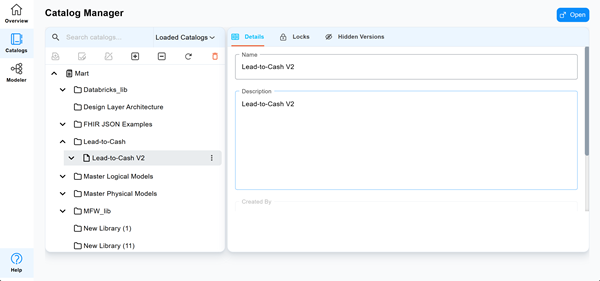
The Catalog Manager page opens.
-
Select the model, and then select Open.
You can also select
 on the model node, and then select Open in Modeler.
The model opens in Diagram View. For example, the Lead-to-Cash Model opens.
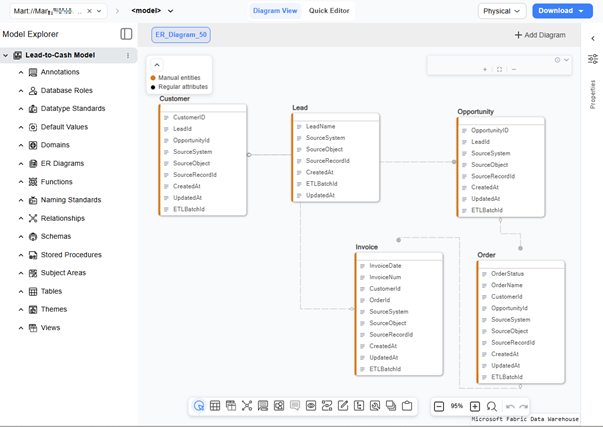
This model has the following UDPs set up:
Level Model Object UDP name Logical/Physical Model Model business_process Logical retention_period Logical source_system Physical target_platform Physical Entity Lead sla_tier Logical pii_present Logical and Physical load_frequency Physical Attribute LeadName data_classification Logical pii_flag Logical business_key Physical currency_code Physical -
On the tool bar, select
 , and then select DBT.
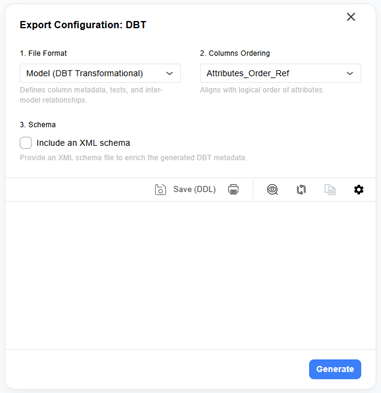
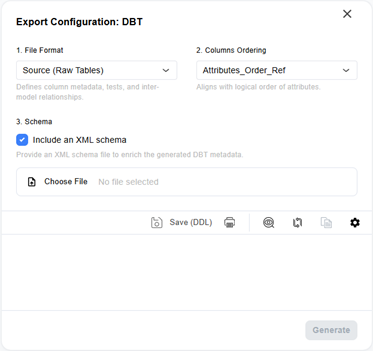
The Export Configuration: DBT page opens.
-
Click the File Format drop-down list and select one of the following options:
-
Model: Specifies that the generated YAML file defines the model as a transformational file for DBT, including column metadata, tests, and inter-model relationships.
-
Source: Specifies that the generated YAML file defines the model as raw tables, including location, columns, tests, and relationships.
Note: Model-level UDPs are written to the meta.source_metadata section, which is generated only in Source file format. When you generate in Model file format, the output includes entity-level (meta.table_metadata) and attribute-level (meta.column_metadata) UDPs only. To include model-level UDPs in the output, select Source from the File Format list.
-
-
Click the Columns Ordering drop-down list and select the order in which columns appear in the output:
-
Attributes_Order_Ref: Specifies that the column ordering aligns with the logical order of attributes defined in the data model.
-
Columns_Order_Ref: Specifies that the column ordering aligns with the physical order in which columns are defined in the table.
-
Physical_Columns_Order_Ref: Specifies that the column ordering aligns with the physical layout of columns as stored in the database.
-
-
Click Generate.
Your model's DBT compatible YAML code is generated. You can save it using the
 button.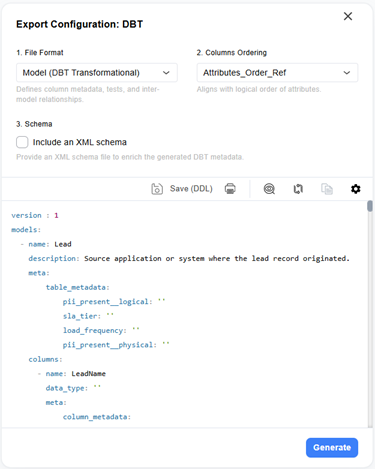
 The complete YAML is as follows:
Copy
The complete YAML is as follows:
Copyversion : 1
models:
- name: Lead
description: Source application or system where the lead record originated.
meta:
table_metadata:
pii_present__logical: ''
sla_tier: ''
load_frequency: ''
pii_present__physical: ''
columns:
- name: LeadName
data_type: ''
meta:
column_metadata:
data_classification: ''
business_key: ''
currency_code: ''
pii_flag: ''
- name: SourceSystem
description: Source application or system where the lead record originated.
data_type: NVARCHAR
meta:
column_metadata:
data_classification: ''
business_key: ''
currency_code: ''
pii_flag: ''
- name: SourceObject
description: Source table, file, or object name for the lead record.
data_type: NVARCHAR
meta:
column_metadata:
data_classification: ''
business_key: ''
currency_code: ''
pii_flag: ''
- name: SourceRecordId
description: Unique identifier of the lead record in the source system.
data_type: NVARCHAR
meta:
column_metadata:
data_classification: ''
business_key: ''
currency_code: ''
pii_flag: ''
- name: CreatedAt
description: Timestamp when the lead record was first created in the warehouse.
data_type: DATETIME2
meta:
column_metadata:
data_classification: ''
business_key: ''
currency_code: ''
pii_flag: ''
- name: ETLBatchId
description: Identifier of the ETL batch that loaded or updated the lead record.
data_type: NVARCHAR
meta:
column_metadata:
data_classification: ''
business_key: ''
currency_code: ''
pii_flag: ''
- name: UpdatedAt
description: Timestamp when the lead record was last updated in the warehouse.
data_type: DATETIME2
meta:
column_metadata:
data_classification: ''
business_key: ''
currency_code: ''
pii_flag: ''
- name: Opportunity
description: Business lineage key referencing the originating lead for this opportunity.
meta:
table_metadata:
pii_present__logical: ''
sla_tier: ''
load_frequency: ''
pii_present__physical: ''
columns:
- name: OpportunityID
data_type: ''
meta:
column_metadata:
data_classification: ''
business_key: ''
currency_code: ''
pii_flag: ''
- name: LeadId
description: Business lineage key referencing the originating lead for this
opportunity.
data_type: NVARCHAR
meta:
column_metadata:
data_classification: ''
business_key: ''
currency_code: ''
pii_flag: ''
- name: SourceSystem
description: Source application or system where the opportunity record originated.
data_type: NVARCHAR
meta:
column_metadata:
data_classification: ''
business_key: ''
currency_code: ''
pii_flag: ''
- name: SourceObject
description: Source table, file, or object name for the opportunity record.
data_type: NVARCHAR
meta:
column_metadata:
data_classification: ''
business_key: ''
currency_code: ''
pii_flag: ''
- name: SourceRecordId
description: Unique identifier of the opportunity record in the source system.
data_type: NVARCHAR
meta:
column_metadata:
data_classification: ''
business_key: ''
currency_code: ''
pii_flag: ''
- name: CreatedAt
description: Timestamp when the opportunity record was first created in the
warehouse.
data_type: DATETIME2
meta:
column_metadata:
data_classification: ''
business_key: ''
currency_code: ''
pii_flag: ''
- name: UpdatedAt
description: Timestamp when the opportunity record was last updated in the
warehouse.
data_type: DATETIME2
meta:
column_metadata:
data_classification: ''
business_key: ''
currency_code: ''
pii_flag: ''
- name: ETLBatchId
description: Identifier of the ETL batch that loaded or updated the opportunity
record.
data_type: NVARCHAR
meta:
column_metadata:
data_classification: ''
business_key: ''
currency_code: ''
pii_flag: ''
- name: Customer
description: Business lineage key referencing the originating lead for this customer.
meta:
table_metadata:
pii_present__logical: ''
sla_tier: ''
load_frequency: ''
pii_present__physical: ''
columns:
- name: CustomerID
data_type: ''
meta:
column_metadata:
data_classification: ''
business_key: ''
currency_code: ''
pii_flag: ''
- name: LeadId
description: Business lineage key referencing the originating lead for this
customer.
data_type: NVARCHAR
meta:
column_metadata:
data_classification: ''
business_key: ''
currency_code: ''
pii_flag: ''
- name: OpportunityId
description: Business lineage key referencing the originating opportunity
for this customer.
data_type: NVARCHAR
meta:
column_metadata:
data_classification: ''
business_key: ''
currency_code: ''
pii_flag: ''
- name: SourceSystem
description: Source application or system where the customer record originated.
data_type: NVARCHAR
meta:
column_metadata:
data_classification: ''
business_key: ''
currency_code: ''
pii_flag: ''
- name: SourceObject
description: Source table, file, or object name for the customer record.
data_type: NVARCHAR
meta:
column_metadata:
data_classification: ''
business_key: ''
currency_code: ''
pii_flag: ''
- name: SourceRecordId
description: Unique identifier of the customer record in the source system.
data_type: NVARCHAR
meta:
column_metadata:
data_classification: ''
business_key: ''
currency_code: ''
pii_flag: ''
- name: CreatedAt
description: Timestamp when the customer record was first created in the warehouse.
data_type: DATETIME2
meta:
column_metadata:
data_classification: ''
business_key: ''
currency_code: ''
pii_flag: ''
- name: UpdatedAt
description: Timestamp when the customer record was last updated in the warehouse.
data_type: DATETIME2
meta:
column_metadata:
data_classification: ''
business_key: ''
currency_code: ''
pii_flag: ''
- name: ETLBatchId
description: Identifier of the ETL batch that loaded or updated the customer
record.
data_type: NVARCHAR
meta:
column_metadata:
data_classification: ''
business_key: ''
currency_code: ''
pii_flag: ''
- name: Order
description: Name or label of the order, renamed from Order_ID.
meta:
table_metadata:
pii_present__logical: ''
sla_tier: ''
load_frequency: ''
pii_present__physical: ''
columns:
- name: OrderStatus
data_type: ''
meta:
column_metadata:
data_classification: ''
business_key: ''
currency_code: ''
pii_flag: ''
- name: OrderName
description: Name or label of the order, renamed from Order_ID.
data_type: ''
meta:
column_metadata:
data_classification: ''
business_key: ''
currency_code: ''
pii_flag: ''
- name: CustomerId
description: Business lineage key referencing the customer who placed this
order.
data_type: NVARCHAR
meta:
column_metadata:
data_classification: ''
business_key: ''
currency_code: ''
pii_flag: ''
- name: OpportunityId
description: Business lineage key referencing the opportunity associated with
this order.
data_type: NVARCHAR
meta:
column_metadata:
data_classification: ''
business_key: ''
currency_code: ''
pii_flag: ''
- name: SourceSystem
description: Source application or system where the order record originated.
data_type: NVARCHAR
meta:
column_metadata:
data_classification: ''
business_key: ''
currency_code: ''
pii_flag: ''
- name: SourceObject
description: Source table, file, or object name for the order record.
data_type: NVARCHAR
meta:
column_metadata:
data_classification: ''
business_key: ''
currency_code: ''
pii_flag: ''
- name: SourceRecordId
description: Unique identifier of the order record in the source system.
data_type: NVARCHAR
meta:
column_metadata:
data_classification: ''
business_key: ''
currency_code: ''
pii_flag: ''
- name: CreatedAt
description: Timestamp when the order record was first created in the warehouse.
data_type: DATETIME2
meta:
column_metadata:
data_classification: ''
business_key: ''
currency_code: ''
pii_flag: ''
- name: UpdatedAt
description: Timestamp when the order record was last updated in the warehouse.
data_type: DATETIME2
meta:
column_metadata:
data_classification: ''
business_key: ''
currency_code: ''
pii_flag: ''
- name: ETLBatchId
description: Identifier of the ETL batch that loaded or updated the order
record.
data_type: NVARCHAR
meta:
column_metadata:
data_classification: ''
business_key: ''
currency_code: ''
pii_flag: ''
- name: Invoice
description: Business lineage key referencing the billed customer for this invoice.
meta:
table_metadata:
pii_present__logical: ''
sla_tier: ''
load_frequency: ''
pii_present__physical: ''
columns:
- name: InvoiceDate
data_type: ''
meta:
column_metadata:
data_classification: ''
business_key: ''
currency_code: ''
pii_flag: ''
- name: InvoiceNum
data_type: ''
meta:
column_metadata:
data_classification: ''
business_key: ''
currency_code: ''
pii_flag: ''
- name: CustomerId
description: Business lineage key referencing the billed customer for this
invoice.
data_type: NVARCHAR
meta:
column_metadata:
data_classification: ''
business_key: ''
currency_code: ''
pii_flag: ''
- name: OrderId
description: Business lineage key referencing the order associated with this
invoice.
data_type: NVARCHAR
meta:
column_metadata:
data_classification: ''
business_key: ''
currency_code: ''
pii_flag: ''
- name: SourceSystem
description: Source application or system where the invoice record originated.
data_type: NVARCHAR
meta:
column_metadata:
data_classification: ''
business_key: ''
currency_code: ''
pii_flag: ''
- name: SourceObject
description: Source table, file, or object name for the invoice record.
data_type: NVARCHAR
meta:
column_metadata:
data_classification: ''
business_key: ''
currency_code: ''
pii_flag: ''
- name: SourceRecordId
description: Unique identifier of the invoice record in the source system.
data_type: NVARCHAR
meta:
column_metadata:
data_classification: ''
business_key: ''
currency_code: ''
pii_flag: ''
- name: CreatedAt
description: Timestamp when the invoice record was first created in the warehouse.
data_type: DATETIME2
meta:
column_metadata:
data_classification: ''
business_key: ''
currency_code: ''
pii_flag: ''
- name: UpdatedAt
description: Timestamp when the invoice record was last updated in the warehouse.
data_type: DATETIME2
meta:
column_metadata:
data_classification: ''
business_key: ''
currency_code: ''
pii_flag: ''
- name: ETLBatchId
description: Identifier of the ETL batch that loaded or updated the invoice
record.
data_type: NVARCHAR
meta:
column_metadata:
data_classification: ''
business_key: ''
currency_code: ''
pii_flag: ''
- name: E_6
meta:
table_metadata:
pii_present__logical: ''
sla_tier: ''
load_frequency: ''
pii_present__physical: ''
columns: [
]
relationships:
- name: R_2
- name: R_4
- name: R_5
- name: R_6
To filter the UDPs that are generated in the output, follow these steps:
-
Create a UDP selection schema (XML file) using any text or XML editor. Save the file to a known location.
This XML file is where you define the include and exclude filters. For more information and examples on filtering, refer to the Selecting UDPs to export section.
For example, for the Lead-to-Cash model, if you want to filter and include a mix of specific UDPs in the YAML script, the UDP selection schema would be:
Copy<UdpSelection>
<Model>
<Include>logical</Include>
<Exclude>logical:retention_period</Exclude>
</Model>
<Entity>
<Include>physical</Include>
</Entity>
<Attribute>
<Include>physical:business_key</Include>
</Attribute>
</UdpSelection>This schema includes all logical model UDPs except retention_period (leaving only business_process), all physical entity UDPs (load_frequency and pii_present), and only the physical attribute UDP, business_key. Everything else is left out.
-
Click the File Format drop-down list and select Source so that model-level UDPs are included in the YAML script.
-
Select Include an XML Schema.
The file attachment field is enabled.
-
Attach the UDP selection schema file that you created in Step 1.
-
Click Generate.
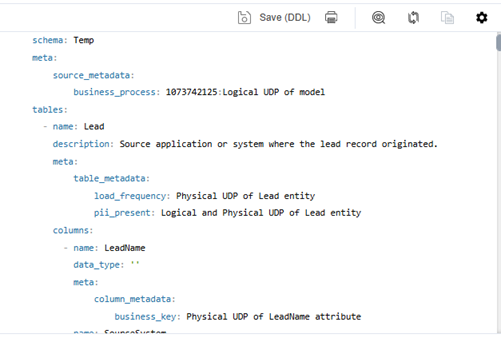
Based on the UDP selection schema, the generated YAML script includes:
-
Logical model-level UDP, business_process
-
All physical entity UDPs, load_frequency and pii_present
-
Only the physical attribute UDP, business_key.
-
You can use the following options on the generated YAML script.
-
Print (
 ): Use this option to print the generated script.
 -
Search (
 ): Use this option to search for a word or characters in the schema.
 -
Copy (
 ): Use this option to copy the script.
 -
Replace (
 ): Use this option to find and replace characters in the script.
 -
Text Display Options (
 ): Use this option to configure the preview text editor's look and feel, such as window, font, and syntax color settings.
Selecting UDPs to Export
By default, the YAML generator writes every UDP it finds in the model at the model, entity, and attribute levels to the YAML metadata. To narrow this down to only the UDPs that matter to you, you can define inclusion and exclusion filters in a UDP selection schema XML file.
Key benefits:
-
Cleaner YAML output: Only business-relevant UDPs are emitted.
-
Consumer control: Each consumer can define their own metadata contract without changing the utility.
-
Lower downstream maintenance: Fewer unexpected metadata keys are included in DBT projects.
-
Safe adoption: This is an optional feature with no impact to existing integrations unless schema is passed.
-
Supports real modeling patterns: Works for logical-only, physical-only, or mixed UDP usage.
You can create the XML file in any text or XML editor, then attach it in the Schema section before you generate.
Scope the Selection by Object Level
Filtering is available for three object levels, each of which maps to a metadata section in the YAML:
|
Object level |
YAML metadata section |
|---|---|
|
Model |
meta.source_metadata |
|
Entity |
meta.table_metadata |
|
Attribute |
meta.column_metadata |
Note: Only model, entity, and attribute-level UDPs are supported. UDPs defined on other objects (for example, annotations) are not included in DBT output.
For each object level, you can:
-
Include or exclude UDPs by scope: Choose Logical or Physical side to act on all UDPs of that scope at once.
-
Include or exclude specific UDPs by name: Pick individual properties when you need fine-grained control. You can refer to a UDP by its plain name (for example, business_process) or by a scope-qualified name (for example, logical:business_process) when you want to target only one scope.
Note: When you specify a scope-qualified UDP name, the corresponding UDP is included or excluded if it exists in the model. If the specified UDP is not found, the filtering process continues and YAML generation is not affected.
If you leave an object level unfiltered, all of its UDPs are included. This means logical-only, physical-only, and mixed models are all supported without extra setup.
How Filtering Works
-
All by default: If you do not attach a schema, all UDPs are included in the generated YAML.
-
Section scope: Rules apply only within their own section (Model, Entity, or Attribute).
-
Omitted section: If you leave out a section, all UDPs for that section are included in the generated YAML.
-
Exclude overrides Include: If the same UDP is both included and excluded, it is excluded from the output.
-
Logical and physical are independent: UDPs on the logical side and the physical side are treated separately. You can include one side and leave out the other.
-
No duplicates: If several rules match the same UDP, it is included once. If a logical and a physical UDP share the same name and both are selected, both values are kept using scope-specific keys.
Schema Structure
The schema is an <UdpSelection> element with a section for each object level. Within a section, use <Include> and <Exclude> rules. Use the following structure:
<UdpSelection>
<Model>
<Include>...</Include>
<Exclude>...</Exclude>
</Model>
<Entity>
<Include>...</Include>
<Exclude>...</Exclude>
</Entity>
<Attribute>
<Include>...</Include>
<Exclude>...</Exclude>
</Attribute>
</UdpSelection>Schema Examples
Include all logical model UDPs:
<UdpSelection>
<Model>
<Include>logical</Include>
</Model>
</UdpSelection>The generated YAML is as follows:
Include only physical entity UDPs:
<UdpSelection>
<Entity>
<Include>physical</Include>
</Entity>
</UdpSelection>
Mix broad and specific rules across levels:
<UdpSelection>
  <Model>
    <Include>logical</Include>
    <Exclude>logical:retention_period</Exclude>
  </Model>
  <Entity>
    <Include>physical</Include>
  </Entity>
  <Attribute>
    <Include>physical:business_key</Include>
  </Attribute>
</UdpSelection>